Reviewing
Compareel shows two files side by side above the list of result groups so you can inspect visual differences, timing, metadata, and audio before anything is removed.
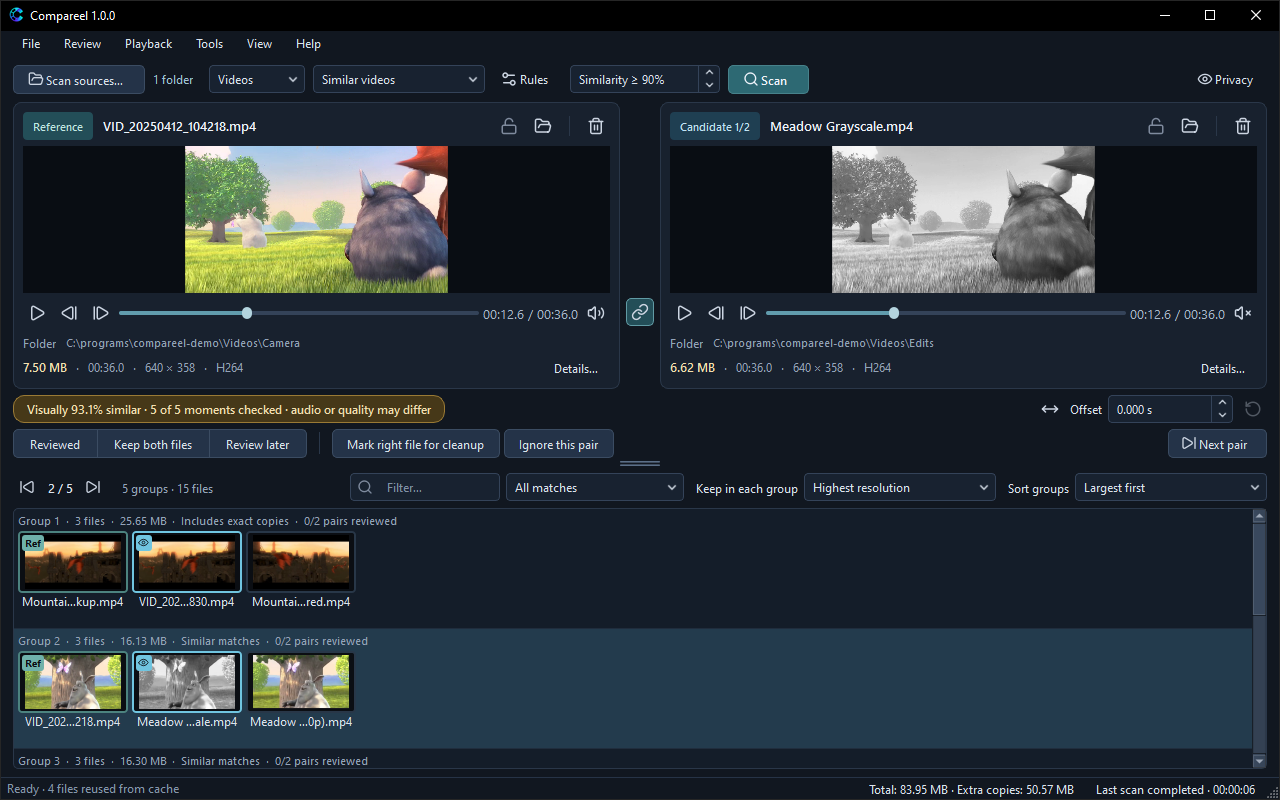
Side-by-side layout
- Reference (left panel) — The first file in the active group row (badged Ref) is loaded on the left and kept by default.
- Candidate (right panel) — The selected candidate in the group (or Candidate X/Y when a group has three or more files) is loaded on the right. Click any thumbnail in a group row to compare it on the right, or use the candidate dropdown on the right panel.
- Change the reference for one group — Right-click a candidate thumbnail in the group row and choose Make reference to move that file to the left panel for that group.
- Metadata bar and File details — Under each preview, Compareel shows file size, duration (videos), resolution, and codec or format. Values that differ between the left and right file are highlighted. Click Details… to open File details, which also lists frame rate, video bitrate, audio codec/channels/sample rate, embedded Subtitles track counts, and the file’s modified timestamp. Note that embedded subtitles are listed for inspection only; they are not rendered during playback or compared during scans.
- Panel buttons — Each panel header has three buttons: Protect this file (lock icon), Show in Explorer (Show in Finder on macOS, Show in file manager on Linux), and Move to Recycle Bin (Move to Trash on macOS and Linux).
Linked playback, offset, and audio check
In Videos mode, the chain button between the two seek bars (or Playback > Link video controls, Ctrl+L, Cmd+L on macOS) links both players:
- Playing, pausing (
Space), scrubbing, seeking, restarting (Playback > Restart both,Ctrl+Home), and stepping one frame backward or forward (Previous frame / Next frame) move both videos together. - The left player starts with audio enabled and the right player starts muted so both tracks do not talk over each other. Use Mute / unmute on either side to switch audio.
- Offset (-3600 to +3600 seconds) shifts the right video relative to the left. Positive values show a later moment on the right. Click Reset alignment next to Offset to return to
0.000 s, or click Auto-align partial clip (Ctrl+Shift+A,Cmd+Shift+Aon macOS) to estimate the offset between a trimmed clip and a longer video. - Compare sampled audio — Choose Tools > Compare sampled audio to check three short audio windows of the primary audio track at the current offset. The result is informational only and never authorizes automatic deletion.
In Images mode:
- Animated images can be played together or stepped frame by frame; when unzoomed and not in Wipe view, you can also press and hold on an animated image preview to play it from the start.
- Multi-page documents (such as multi-page TIFF or HEIF collections) show a page selector so you can step through pages.
Comparison views
Switch how the two previews are drawn from Playback > Comparison view:
- Side by side — Shows the left reference and right candidate in their own panels (default).
- Wipe — Splits the right preview between the left and right files. Drag horizontally across the right preview to move the divider line.
- Overlay — Blends both images or video frames at 50% opacity in the right preview to check framing, crops, or watermarks.
- Difference (display aid) — Highlights pixel-by-pixel differences in the right preview. Small compression differences still appear even when two encodes look similar to the eye.
Quick flip (B): Click either preview to focus it, then hold B to temporarily show the other file in the exact same spot; release B to flip back.
Shared zoom and pan
- Scroll the mouse wheel over either preview to zoom in or out (from
0.5xup to8x). - Drag inside either preview to pan while zoomed in. Zoom level and pan position stay synchronized across both panels.
- Double-click either preview or choose Playback > Fit to window (
Ctrl+0,Cmd+0on macOS) to reset zoom and pan.
Review decisions and ignored pairs
The review bar below the players (and Review > Review decision, or right-clicking a candidate thumbnail) records your decision for the current pair by file identity, so decisions survive rescans unless the files change:
- Reviewed (
Ctrl+1) — Marks the pair as checked. It does not block cleanup. - Keep both files (
Ctrl+2) — Protects both files in the pair from cleanup marks, bulk cleanup, moves, and Recycle Bin (Trash) removal until you clear the decision. - Review later (
Ctrl+3) — Marks the pair to revisit later and likewise protects both files from cleanup and removal until cleared.
Pressing the active decision button or shortcut a second time (or choosing Review > Review decision > Clear review decision) returns the pair to unreviewed. To clear every saved review note across all scans, choose Review > Review decision > Reset all review decisions….
If two files are unrelated false matches that you do not want grouped together again:
- Click Ignore this pair (
Ctrl+I,Cmd+Ion macOS) in the review bar or Review menu. Compareel hides that pair immediately, regroups any remaining files in the group, and remembers the ignored pair on future scans. - Choose Review > Reset ignored pairs and scan again if you want ignored pairs to reappear.
Click Next pair (Alt+Down, Option+Down on macOS) to step through each candidate in the current group and then move on to the next group.
Filtering, reference order, and sorting
The bar directly above the result rows controls which groups are shown and how files are ordered:
- Filter… — Type part of a file name or folder path to filter visible groups.
- Match-type filter — Show All matches, Exact copies, Includes exact copies, or Similar matches. After a similarity or advanced scan, run Tools > Verify exact matches in results first if you want Compareel to hash same-size files for Exact copies / Includes exact copies.
- Keep in each group — Sets which file becomes the default left reference in each group (protected files always come first):
- Highest resolution
- Largest file
- Longest duration (videos only)
- Oldest file
- Newest file
- First by name
- Sort groups — Orders the result list by Largest first, Smallest first, Longest first (videos only), Shortest first (videos only), Highest resolution, Lowest resolution, or Filename.
You can also export all current result groups to CSV via File > Export results….
Keyboard shortcuts
Press F1 (Help > Keyboard shortcuts) at any time to view shortcuts inside the app. On macOS, use Cmd in place of Ctrl and Option in place of Alt.
| Shortcut (Windows / Linux) | macOS | Action |
|---|---|---|
Ctrl+O | Cmd+O | Scan sources… |
Ctrl+Shift+O | Cmd+Shift+O | Open two files… |
Ctrl+S | Cmd+S | Save review session… |
Ctrl+Shift+L | Cmd+Shift+L | Open review session… |
Ctrl+Z | Cmd+Z | Undo last copy or move… |
F5 | F5 | Scan |
Ctrl+Shift+P | Cmd+Shift+P | Pause scan |
Esc | Esc | Stop scan |
Alt+Left / Alt+Right | Option+Left / Option+Right | Previous group / Next group |
Alt+Down | Option+Down | Next pair |
Up / Down (in results list) | Up / Down | Previous / next visible group |
Left / Right (in results list) | Left / Right | Previous / next candidate in group |
Home / End (in results list) | Home / End | First / last candidate in group |
Shift+Mouse wheel (on row) | Shift+Mouse wheel | Scroll group thumbnails sideways |
Ctrl+1 | Cmd+1 | Reviewed |
Ctrl+2 | Cmd+2 | Keep both files |
Ctrl+3 | Cmd+3 | Review later |
Ctrl+I | Cmd+I | Ignore this pair |
Ctrl+M | Cmd+M | Mark right file for cleanup |
Delete (after clicking a preview) | Delete or Cmd+Backspace | Move focused file to Recycle Bin… (Move focused file to Trash…) |
Space | Space | Play / pause both |
Ctrl+Home | Cmd+Home | Restart both |
Ctrl+L | Cmd+L | Link video controls |
Ctrl+Shift+A | Cmd+Shift+A | Auto-align partial clip |
Ctrl+0 | Cmd+0 | Fit to window |
Hold B (on focused preview) | Hold B | Show the other file while held |
Ctrl+Shift+, | Cmd+Shift+, | Scan rules… |
Ctrl+, | Cmd+, | Settings… |
Ctrl+Shift+H | Cmd+Shift+H | Privacy mode |
F1 | F1 | Keyboard shortcuts |
Alt+F4 / Ctrl+Q | Cmd+Q | Exit (Quit Compareel on macOS) |
Next: Cleaning up explains how to remove, copy, move, or quarantine copies while keeping at least one file in every group.